Getting Started
Complete these steps before the first day of camp (Sept 14). Budget an hour. If you get stuck at any point, email the TA, Max Welch (mwelch@ucdavis.edu), and tell him which step you are on.
Step 1: R and RStudio
You need two separate programs: R (the programming language) and RStudio (the app you write R in). Install the latest version of each:
If you have never done this before, these videos walk through it step by step: Mac users, Windows users.
Update your operating system first (guide), then install the latest version of each program. The videos may show older versions; the latest one is at the top of each download page.
Once both are installed, open RStudio, paste the following into the Console (the panel on the bottom left; see the screenshot below), and hit enter. This installs the tidyverse (the set of packages we use all week) and my juanr data package:
install.packages(c("tidyverse", "remotes"))
remotes::install_github("hail2thief/juanr")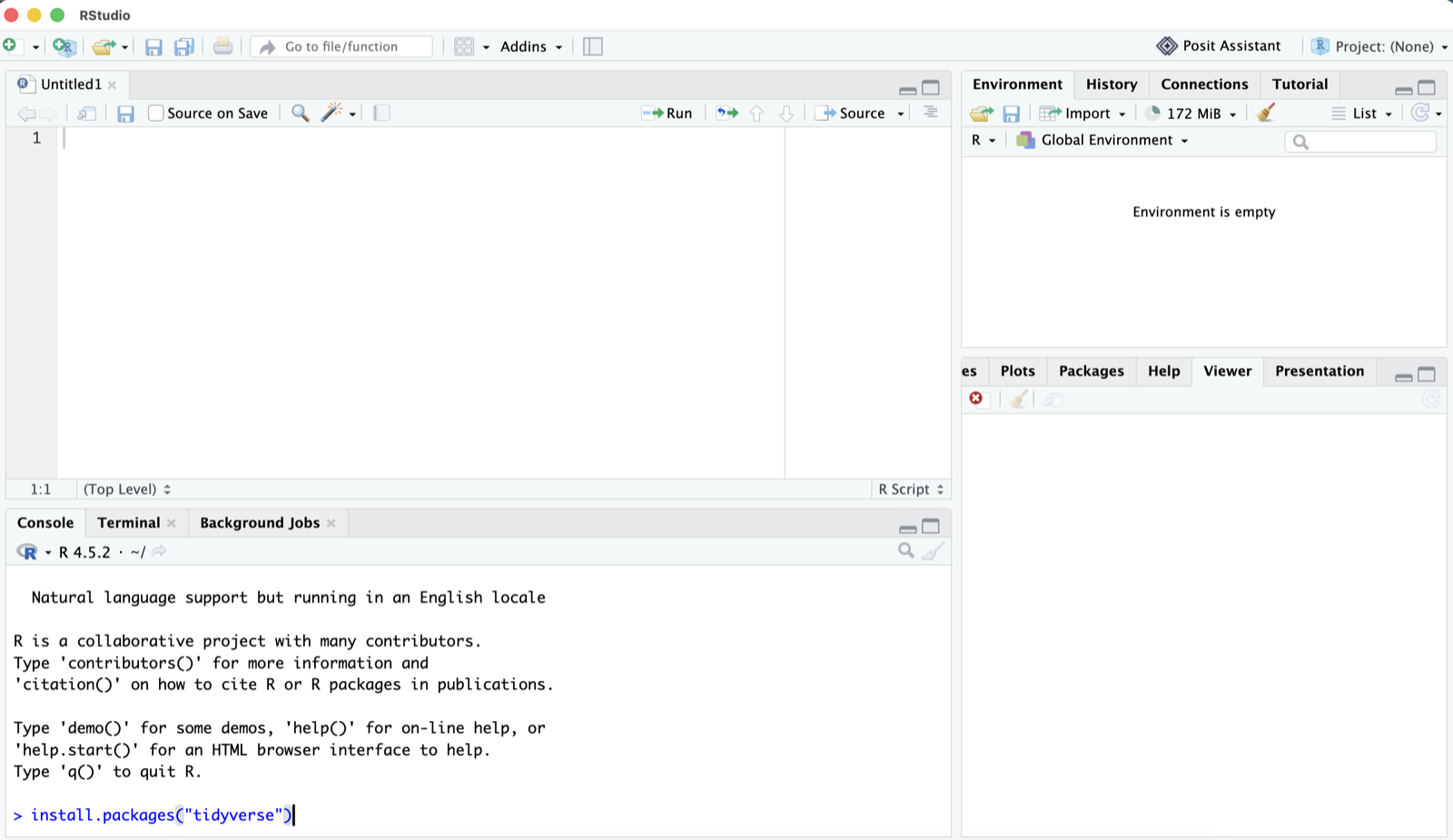
> and hit enter.To check that it worked, run these two lines. They should finish without any red error text:
library(tidyverse)
library(juanr)
Step 2: Claude Code
This year we will work the way researchers now actually work: with an AI coding agent writing much of the code, and you learning to read it, check it, and direct it. The agent we will use is Claude Code, made by Anthropic. It runs on your own computer, can see the files in your project, and can write and run R code for you. We will use it from the first morning of camp, so please have it working before you arrive.
Claude Code requires a Claude Pro subscription ($20/month). The free Claude plan does not include it. You can cancel after camp if you don’t want to keep it.
You can also opt out of using AI tools and do the camp exercises by hand.
A terminal is a plain text window where you type commands instead of clicking buttons. On a Mac it is the Terminal app (press ⌘ + space, type “terminal”). On Windows it is the PowerShell app (open the Start menu and type “powershell”). During camp we will run Claude Code from this terminal, or from the Claude Code desktop app if you prefer clicking to typing. RStudio has a Terminal tab of its own (next to the Console), but it is finicky with Claude Code, so use the real terminal instead.
Get a Claude Pro account
Go to claude.ai, create an account, and upgrade to the Pro plan.
Install Claude Code
Open a terminal and paste in the command for your operating system. It will download and install the program. This takes a minute or two.
Open the Terminal app and paste:
curl -fsSL https://claude.ai/install.sh | bashOpen the PowerShell app and paste:
irm https://claude.ai/install.ps1 | iexWhen it finishes, close the terminal window and open a new one. The claude command will not be found until you do this.
Sign in and test it
In the new terminal window, type:
claudeThe first time you run it, a browser window will open asking you to log in to your Claude account. Log in, approve the connection, and go back to the terminal. You should now see a prompt waiting for you to type.
Ask it something simple, like “what folder am I in?” It should answer. Then type /exit to quit.
- “command not found”: close the terminal, open a new one, and try again. If it still fails, reinstall and email the TA.
- The browser never opened: type
claude loginto trigger the login again. - Windows and it asks about a shell: pick PowerShell. You do not need to install anything else.
Start it inside your project
Claude Code can only see the folder it was started in. So the routine, every time, is: open a terminal, go to your project folder, then start Claude. Try it now with any folder, and use it for real on the first day of camp with the camp project.
Open a terminal (Terminal on Mac, PowerShell on Windows)
Move into the folder you want to work in with the
cdcommand (“change directory”). The easiest way to get the folder’s path right: typecdand a space, then drag the folder from Finder or File Explorer into the terminal window, and hit enter. It will look something like:cd ~/Desktop/rproject_campCheck you are in the right place.
pwdprints the folder you are in andlslists what’s inside. You should seecode,data, andfigures.Type
claude. Ask it “what folder am I in?” to confirm it sees your project.
The Claude Code desktop app does the same thing without the terminal: open the app, pick your project folder, and start typing. Either one is fine for camp.
Using the agent well
You are responsible for anything the agent writes for you. In camp you will learn a simple routine for checking its work, but a few habits help from day one:
- Be specific. “Help me with my data” is too vague. “Make a bar plot of murders per city from
data/murders.csv, sorted from most to least, and save it tofigures/murders.png” gives the tool something to work with. - Say where things are. Tell it which file holds the data and where to save the output. It can see your project folder, but it can’t read your mind.
- Ask it to explain. If it produces code you don’t understand, ask “explain what this line does.” Understanding the code is the whole point of camp.
- Check the output. Look at the plot. Count the rows. If the number seems wrong, say so and ask it to look again.
- Don’t repeat yourself. If you keep giving the same instructions (“always use
=for assignment,” “comment the code”), ask it to save those preferences for the project. It will write them to a file it reads every time it starts.